How to Set Up a Multi-Monitor Workspace
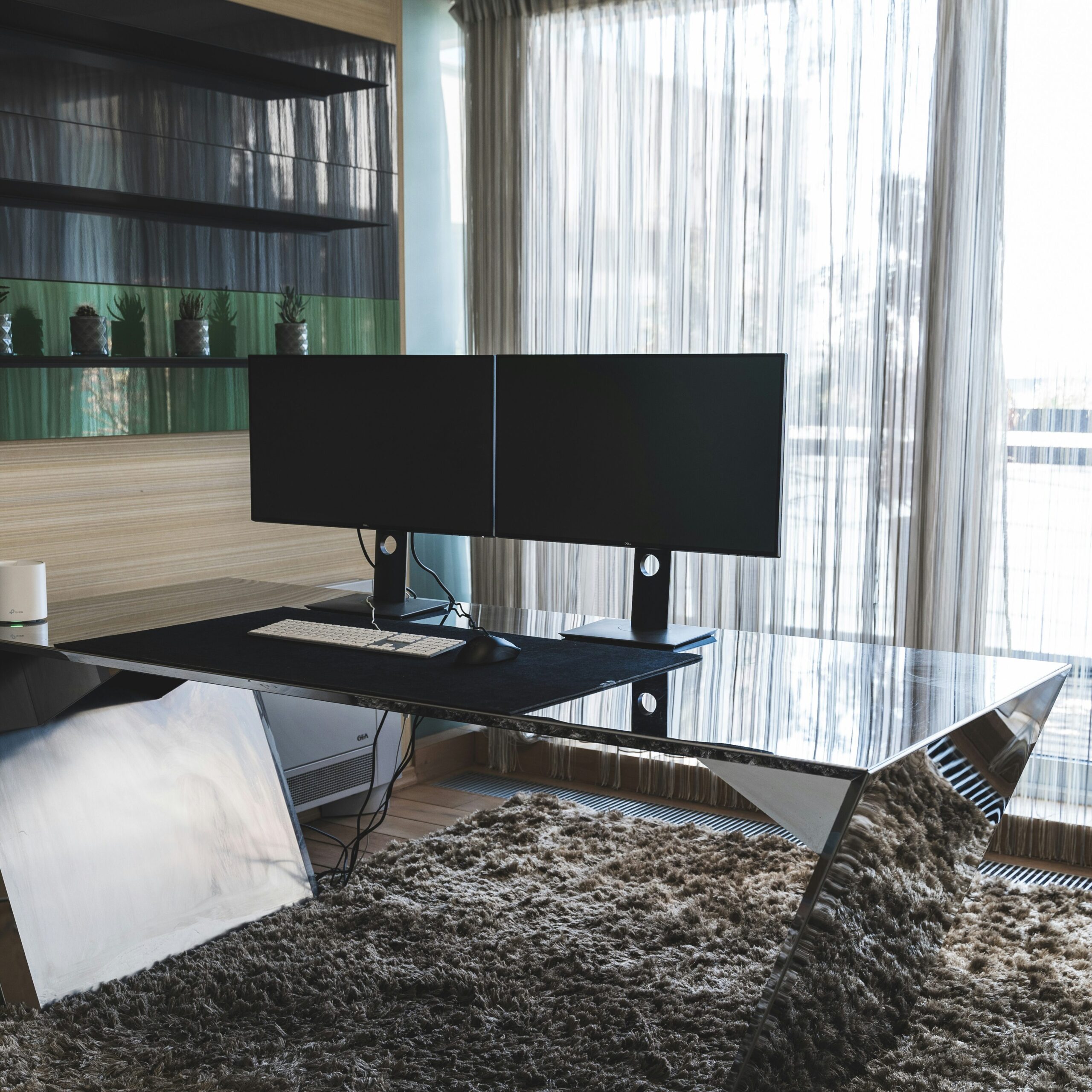
Wondering about how to set up a multi-monitor workspace that boosts your productivity? You’re about to discover the exact steps that transform cramped single-screen frustration into a seamless, organized digital command center.
The secret isn’t just plugging in extra monitors. It’s about strategic placement, proper ergonomics, and smart cable management that creates a workspace where switching between tasks feels effortless. Whether you’re coding, studying, or managing remote work projects, this guide will walk you through every detail.
Planning Your Perfect Desk Setup
Space assessment comes first, not monitor shopping. Measure your desk depth and width before buying anything. Most dual monitor setups need at least 48 inches of desk width and 24 inches of depth for comfortable viewing.
Consider your primary tasks when planning layout. Coding work benefits from one vertical monitor for long files and one horizontal for debugging. Students might prefer two horizontal monitors for research on one side and writing on the other.
Lighting affects everything. Position monitors perpendicular to windows when possible to minimize glare. If that’s impossible, consider monitors with anti-glare coatings or adjustable brightness that adapts throughout the day.
Dual Monitor Ergonomics
The 20-inch screen rule prevents most neck strain. Your primary monitor should sit 20-26 inches from your eyes, with the top of the screen at or slightly below eye level. This follows smart OSHA workplace safety guidelines that prevent long-term injury.
Secondary monitor placement requires careful thought. Place it at the same distance as your primary screen, angled slightly inward (about 10-15 degrees). Avoid extreme angles that force awkward neck positions during extended use.
Monitor height affects everything from productivity to headaches. If your monitors sit too low, you’ll develop forward head posture. Too high, and you’ll strain your neck looking up. Invest in adjustable stands or arms to dial in the perfect height.
Optimizing Display Settings and Setup
Resolution matching eliminates cursor jumping frustration. When monitors have different pixel densities, your mouse cursor will “jump” sizes as you move between screens. Use Windows display scaling to normalize cursor movement and text sizes.
Color calibration creates visual consistency. Mismatched colors between monitors strain your eyes and make design work impossible. Use built-in calibration tools or follow professional monitor calibration guides for accurate colors across all screens.
Brightness balancing prevents eye fatigue. Set all monitors to similar brightness levels, typically 120-150 cd/m² for most office environments. Your peripheral vision shouldn’t notice dramatic brightness differences between screens.
Specialized Tips for Developers & Coding
Vertical orientation transforms code review. Rotate one monitor 90 degrees to see more lines of code at once. This setup is perfect for reading long functions, comparing files side-by-side, or monitoring log files in real-time.
Primary monitor positioning affects productivity significantly. Place your main coding screen directly in front of you, with reference monitors (documentation, browsers, terminals) positioned as secondary displays to the left or right.
Window management software eliminates chaos. Tools like DisplayFusion or PowerToys help snap windows to specific zones, remember window positions, and create custom hotkeys for moving applications between monitors instantly.
Frequently Asked Questions
Keep monitors close enough that you can see both peripherally without turning your head more than 35 degrees. Usually 2-6 inches of gap between monitor bezels works best for seamless cursor movement.
No, but matching monitors provide the best experience. If using different models, try to match screen sizes and resolutions. Avoid pairing 4K with 1080p monitors as scaling issues create usability problems.
No, but matching monitors provide the best experience. If using different models, try to match screen sizes and resolutions. Avoid pairing 4K with 1080p monitors as scaling issues create usability problems.
This depends on your monitors and computer ports. Common options include HDMI, DisplayPort, USB-C, or DVI. Check both your computer’s outputs and monitor inputs before purchasing cables.
Where to Buy
Transform your workspace today with the HUANUO Dual Monitor Stand. With full adjustability and built-in cable management, it’s the foundation of any productive multi-monitor workspace.
Related Reads from Optiwire:
- If you’re choosing between mounts, check out our guide on whether you should get a monitor arm or stand.
- Looking for an affordable setup? Don’t miss our picks for the best budget monitors for home office setups.
- And for an efficient workflow, learn how to set up a dual monitor layout for productivity.